
How Can We Help?
Minimum Staffing
This article applies to Administrators, Schedulers, and users with Schedule Template Editor access.
About Minimum Staffing
Minimum Staffing helps you set coverage requirements and identify gaps in your schedule. Rules can apply to all shifts, shifts in a selected view, or a single shift. For example, you can require two Dispatchers on weekday day shifts or one person on an overnight shift.
eSchedule compares scheduled coverage with your rules and displays staffing status on the dashboard and schedule. Minimum Staffing identifies gaps; it does not automatically assign members to shifts.
Permissions – Administrators and users with Schedule Template Editor access can manage rules. Schedulers can view staffing status, but need Schedule Template Editor access to manage rules.
Video Help

Enabling Minimum Staffing
- As an Administrator, navigate to “Administration > Account Configuration”.
- Under General, turn Minimum Staffing on.
- Click “Update General Settings”.
Once Minimum Staffing is enabled, the General settings also display Restrict Basic Sign-off. This optional setting is explained below.
Adding a Staffing Rule
- Navigate to “Schedule > Schedule Template Editor”.
- Select “Staffing Minimums”, then click “Add a Rule”.
-
Complete Rule Basics:
- Rule Name – Enter a descriptive name, such as “Dispatcher Day Shift.” This name appears on the schedule and in staffing warnings.
- Minimum Required – Enter how many people must be on duty at the same time. This is not the total number of people scheduled across the entire day.
- Active – Leave checked to evaluate the rule. Uncheck to save a draft or pause the rule without deleting it.
-
Under Where Does This Rule Apply?, choose one of
the following:
- All Shifts – Count qualifying filled positions across the entire schedule.
- Shifts in a View – Count only shifts in the selected view, such as a station or department.
- A Single Shift – Count only positions on the selected shift.
- Under Who Counts Toward the Minimum?, select Anyone on duty or Only people in these positions. If you choose specific positions, select the position titles that satisfy the rule. Optionally check Count only Prime positions to count only positions marked “Include as Prime? Yes” in the Schedule Template Editor.
- Under When Does This Rule Apply?, choose the weekdays and time window. Use the quick picks, then adjust the days and times as needed. Click “Add Another Time Period” for additional periods.
- Review Live Preview. It updates as you edit and shows Today and the next 7 days. Click a day for details.
- Click “Save Rule”.
Note: An end time at or before the start time runs past midnight. For example, 18:00–06:00 covers an overnight period, and 00:00–00:00 covers 24 hours. Select the day on which the period starts.
Important: Live Preview does not save your changes. Click “Save Rule” to keep them, or “Cancel” to leave without saving.

Date Overrides
Use Date Overrides when a specific date needs a different requirement, such as a holiday or special event.
- Open the rule and find Date Overrides, or click “Overrides” beside the rule on the Staffing Minimums page.
- Click “Add a Date Override”.
- Enter the date, start time, end time, minimum, and an optional note.
- Click “Save Rule”.
The override replaces the minimum for its time window. Set the override minimum to 0 to suspend the rule during that window. This does not deactivate the entire rule.
Viewing Staffing Coverage
Review staffing status in the Minimum Staffing — Next 7 Days dashboard panel, the weekly spreadsheet schedules, or the monthly schedule.
- Green – Coverage meets or exceeds the minimum throughout the applicable windows. Meeting the minimum exactly counts as met.
- Red – Coverage falls below the minimum during an applicable window.
- Dash – The rule is not in effect for that day.
- Date override indicator – A date-specific requirement applies.

Counts compare scheduled coverage with the required minimum. For example, 1/2 means one scheduled against a requirement of two in the highlighted shortfall window. Below-minimum cells show the worst coverage slice; green cells show peak concurrent coverage. Hover for the time-window breakdown rather than treating the displayed count as a daily total.
On the weekly schedule, the summary highlights rules that fall short. Click “each rule” to expand the individual rules, or “summary” to return to the compact view. Click the Minimum Staffing label to hide or show the band. The weekly staffing band is not displayed in the mobile layout.
Finding a Staffing Gap
Hover over a staffing status cell to see the affected rule, time window, and coverage details. For a shortage, How to resolve identifies how many more people are needed and which positions qualify. Click “Open the schedule” when that link is available.
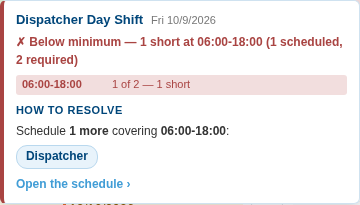
Note: Coverage is based on scheduled assignments. Open positions and closed, unassigned shifts do not count toward the minimum. A position must also match the rule’s selected shifts, positions, Prime setting, and time window.
Sign-off Restrictions
To prevent Basic users from signing off when that would leave staffing below minimum, an Administrator can enable Restrict Basic Sign-off under “Administration > Account Configuration > General”, then click “Update General Settings”.
- With the restriction on, affected Basic users receive “Sign Off Not Allowed”.
- Administrators and Schedulers can review a “Below Minimum Staffing” warning and choose “Sign Off Anyway” to acknowledge it and continue.
- Schedule Template Editor access alone does not grant the Administrator/Scheduler sign-off override.
- When Restrict Basic Sign-off is off, Basic users are not blocked by Minimum Staffing. Other sign-off rules still apply.
Editing or Pausing a Rule
From “Schedule > Schedule Template Editor > Staffing Minimums”:
- Click “Edit” to update a rule, then “Save Rule”.
- Click “Deactivate” to stop evaluating a rule without deleting it. Click “Activate” to turn it back on.
- Click “Delete” only when you intend to remove the rule. Deactivate it instead if you may need it again.
Troubleshooting
Staffing Minimums is missing – Check that Minimum Staffing is enabled and that you have Schedule Template Editor access. A Scheduler can view status without automatically having permission to edit rules.
A scheduled person is not counted – Check the rule’s view or shift, position selections, Prime-only setting, and hours. If a position was renamed, review the rule’s position selections.
A day shows a dash – Review the selected weekdays and time periods. A rule that is not in effect has no requirement for that day.
If you need assistance with your setup, please contact our Support Team.
“`